Customize Pick Lists
Pick Lists (print templates) are based on simple HTML code and easy to create and customize.
A print template is a simple HTML file with a “.html” suffix. It contains ordinary HTML code with added command placeholders to include properties (e.g. item title, SKU, price).
Object Placeholders
The following placeholders can be used inside a print template’s HTML file:
| Property Name | Type | Value |
|---|---|---|
| [[listing.title]] | String | The listing title |
| [[listing.subTitle]] | String | The listing subtitle |
| [[listing.sku]] | String | The SKU of the listing |
| [[listing.effectiveQuantity]] | Integer | The effective quantity of the listing |
| [[listing.productBarCode]] | String | The barcode of the listing |
| [[listing.minimumBid.localizedCurrencyString]] | String | The minimum or starting bid of the listing |
| [[listing.buyItNowPrice.localizedCurrencyString]] | String | The ‘Buy It Now’ price of the listing |
| [[listing.inventoryProductTitle]] | String | Title of the linked inventory item |
| [[listing.firstListingImage.thumbImagePath]] | String | The first image of the listing |
| [[listing.auctionImageURLs]] | List of Strings | List contains all URLs of the images included in the listing |
| [[listing.userProps.property_title]] | String | A custom value you entered in the user properties section of the template inspector for the label ‘property title’ |
Locating and Storing Custom Print Templates
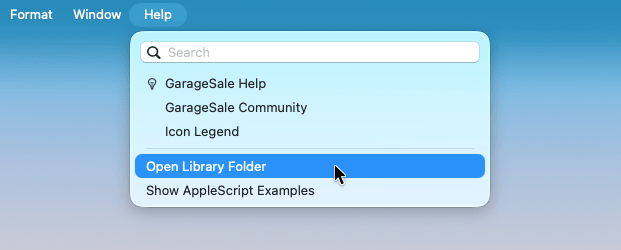
Once you’ve created your own HTML file you need to add it to GarageSale’s library folder. To do so just select “Open Library Folder” from GarageSale’s Help menu:
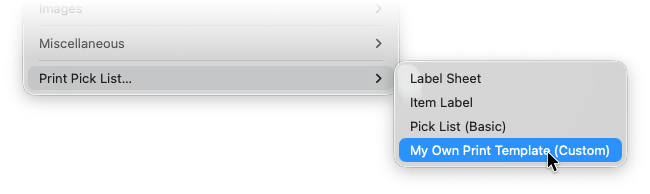
In that Finder window you find a folder called “PickLists”. Place your custom print template file there. Afterwards your custom print template should be available in GarageSale:
Example Code
It’s required to add “loop” placeholders for listings:
[[foreach listing listings listingsLoop]]
Please see the example code below:
<!DOCTYPE html>
<html>
	<head>
		<title>My Own Pick List</title>
		<style type="text/css">
			body {min-width: 150mm; margin: 0; padding: 30pt 40pt; box-sizing: border-box; font-family: -apple-system-font, sans-serif; font-size: 8pt; line-height: 1.4;}
			h1 {margin: 10px 0; padding: 0; font-size: 2em;}

			table {width: 100%; border-spacing: 0; text-align: left; word-break: break-all;}
			table tr {page-break-inside: avoid; break-inside: avoid;}
			table th {vertical-align: top; border-top: dashed 1px #aaa; border-bottom: dashed 1px #aaa; padding: 8px 20px 8px 0; white-space: nowrap; font-weight: bold;}
			table th:last-child, table td:last-child {padding-right: 0;}
			table td {vertical-align: top; padding: 8px 20px 0 0;}

			.item > div {display: flex;}
			.itemImg {margin-right: 10px; text-align: center; flex: 0 0 30pt;}
			.itemImg img {max-width: 30pt; max-height: 30pt;}
			.price {white-space: nowrap;}
			.sku {width: 20%;}
		</style>
	</head>
	<body>
		<h1>Pick List</h1>
		<table>
			<tr>
				<th>Item</th>
				<th>Price</th>
				<th>SKU</th>
				<th>Quantity</th>
			</tr>

			[[foreach listing listings listingsLoop]]
			<tr>
				<td class="item">
					<div>
						<div class="itemImg">
							[[if listing.firstListingImage.thumbImagePath]]
								<img src="file://[[listing.firstListingImage.thumbImagePath]]">
							[[endif]]
						</div>
						<div class="itemTitle">
							[[listing.title]]
						</div>
					</div>
				</td>
				<td class="price">
					<div>
						[[listing.buyItNowPrice.localizedCurrencyString]]
					</div>
				</td>
				<td class="sku">
					<div>
						[[if listing.sku]]
							[[listing.sku]]
						[[else]]
							-
						[[endif]]
					</div>
				</td>
				<td class="quantity">
					<div>
						[[listing.effectiveQuantity]]
					</div>
				</td>
			</tr>
			[[endforeach listingsLoop]]

		</table>
	</body>
</html>
If needed, you can also add your own image files, e.g. your own banner image, like this:
<img src="myImage.jpg">
In the Finder, you need to place the image file next to the HTML file.
To learn more about GarageSale’s macro commands, please see the chapter Design Template Language.
| << Customize Packing Slips | General >> |