Text Snippets
In GarageSale you can create pre-defined text snippets that can be used in your item description and the “Condition Details” field of your listings. This way you don’t have to re-type the same text parts again and again.
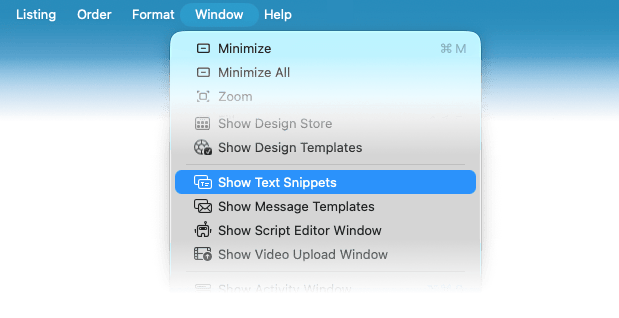
To create a new text snippet, open the Text Snippets editor window by selecting “Show Text Snippets” from GarageSale’s “Window” menu:
In the Text Snippets window you can easily edit existing text snippets or create new ones. To create a new text snippet use the + button.
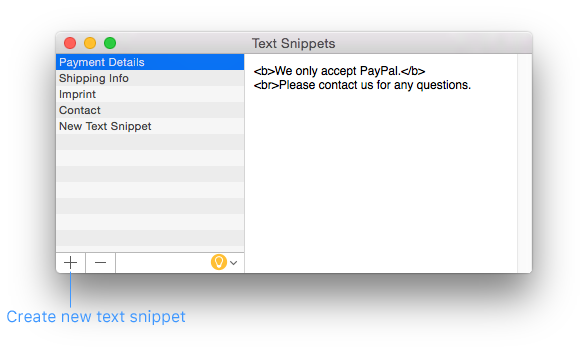
You can insert plain text or HTML code. Here are some basic HTML code examples that you can use if you want to format the text:
- Adding line breaks:
<br> - Bold text:
<b> your text </b> - Colored text:
<span style="color: red"> your text </span>
Inserting Text Snippets in your Item Description
In Editor mode place the cursor where you want to insert the text snippet in the item description. Then use the Text Snippets button below the description field to select one of your text snippets:
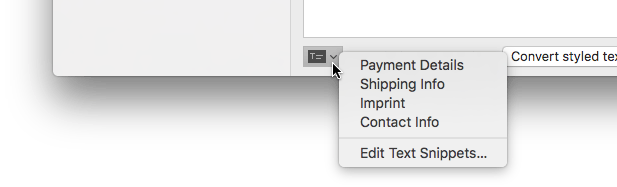
Once inserted, text snippets appear like this in your item description:
{{textblocks.your-text-snippet}}
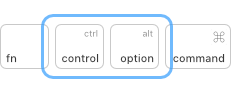
To see how they look expanded, switch to Preview mode and press the control + option keys on your keyboard simultaneously.
Inserting Text Snippets in the Condition Details field
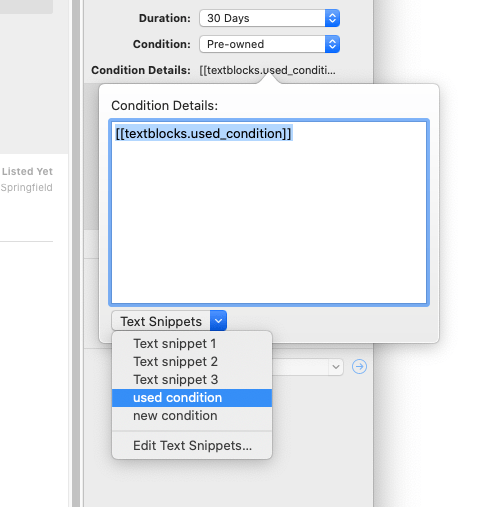
Instead of typing the same condition details again and again just create one or more text snippets once and insert it into the “Condition Details” field.
| << Videos | Tags >> |