Groups and Smart Groups
Groups and Smart Groups greatly help you to organize your items. To create a new group or smart group click on the + button in the toolbar.
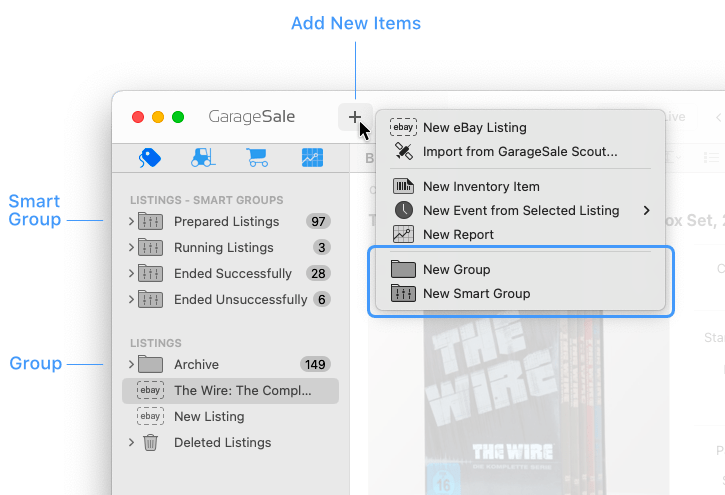
Groups
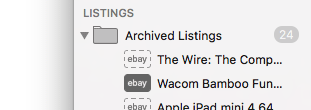
You can put items into groups manually by using drag and drop. Another way is to use the Moving Selected Items To feature.
Renaming a group
To rename a group, highlight it, then perform a short click on the group title.
Sorting a group
To sort the content of a group control-click on the group and select a sort option:
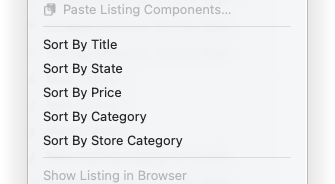
Good to know: Holding down the option key while choosing “Sort By Title” from the listing section’s outline view context menu sorts listings in reverse order.
Smart Groups
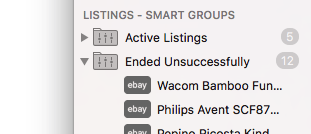
Thanks to smart groups you can easily manage and organize your listings, inventory items and orders.
A smart group is an “intelligent” group that filters your items by the selected criteria. It is updated automatically, that’s why you can’t put items manually into a smart group. It contains aliases of your items - your original items won’t be moved.
Smart Group Settings
To open the smart group settings just doubleclick the smart group icon. If you hold down the option key while opening the smart group editor, all values in the property popups are sorted alphabetically.
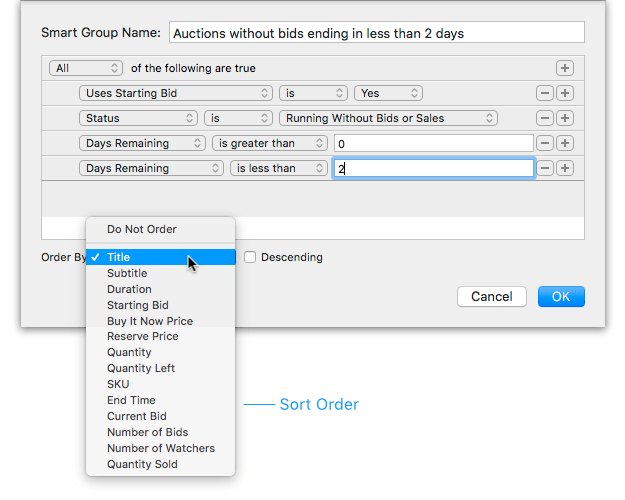
These are sample smart settings that filter all running auctions which don’t have bids yet so you can take action and e.g. decrease the starting bid:
Renaming a smart group
You can rename a smart group in the settings window or you highlight it in the outline view and then perform a short click on the group title.
Sorting a smart group
Smart Groups can be sorted by using the “Order By:” menu in the settings.
Revealing original item
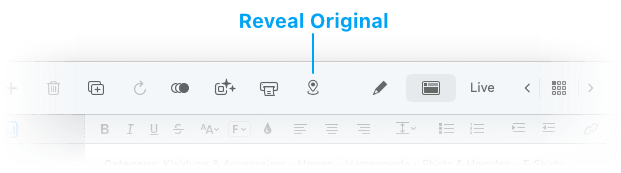
To easily jump to the original of an item displayed in a smart group, control-click on it and select “Reveal Original”. You can use the “Reveal Original” toolbar button also. It is available in the Customize Toolbar menu.
Duplicating a smart group
Right-click on a smart group and select the “Duplicate Smart Group” command.
Good to know
You can’t duplicate an item inside a Smart Group. Solution: Select “Reveal Original” from the context menu. You can then create the duplicate from the original item.
Advanced Smart Group Options
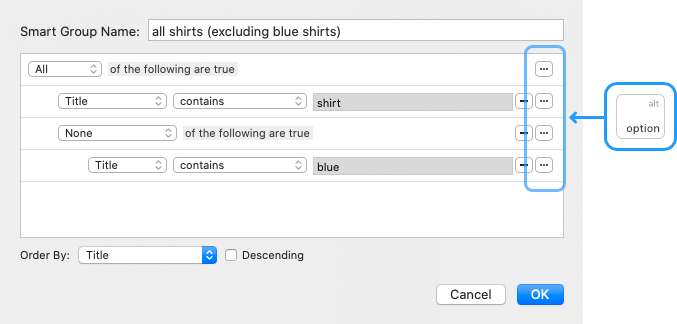
When holding down the option key on your keyboard the + buttons change to a ••• button. If you click this ••• button a “nested” rule is added which allows you to create advanced smart group settings.
As an example you can use it to add a kind-of “does not contain” rule, e.g. a smart group that shows all “shirt” listings, excluding “blue” shirts:
| << Inspector Sidebar | Search Field >> |