Bulk Editing
- Editing Multiple Selected Listings at Once
- Bulk Find and Replace Text
- Copying and Pasting Listing Components
- Moving All Selected Items at Once
- JavaScript Bulk-Editing Actions
Editing Multiple Selected Listings at Once
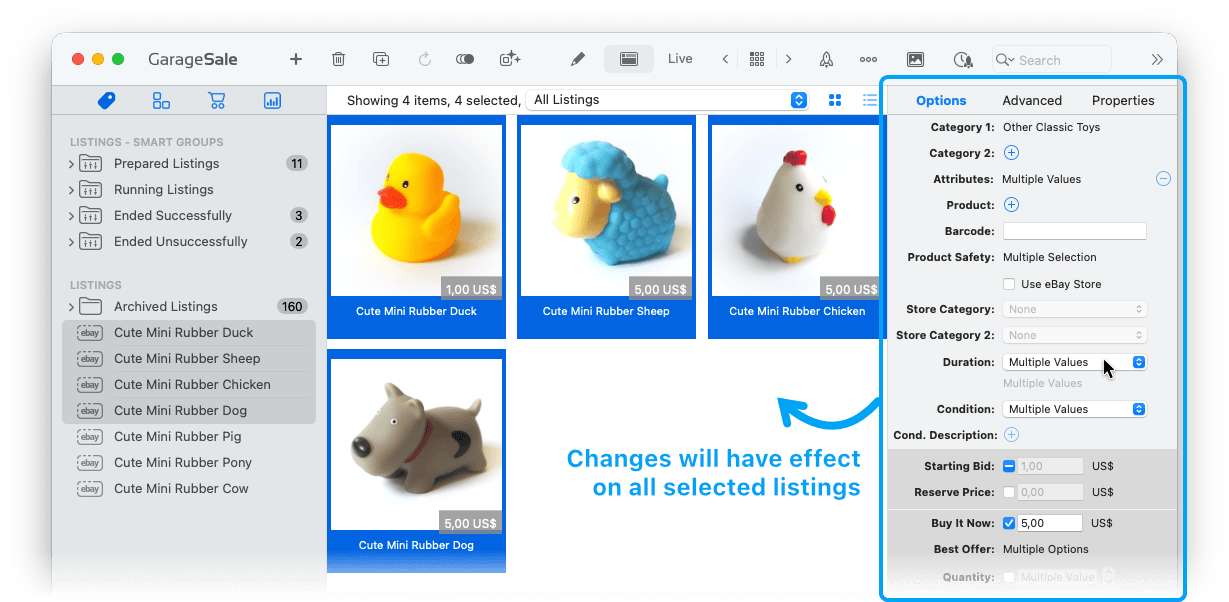
To bulk edit multiple listing at once, select the desired listings in the left outline view: Press and hold the command key while clicking on additional listing. If you now change settings in the inspector, these changes will get applied to all selected listings.
Good to know
Certain settings can only be changed in bulk if all selected listings are using the same eBay site. For example, if some listings are meant for eBay.com and others for eBay.ca, you will not be able to edit these listings in bulk, unless you modify your selection to only include such listing that share the same eBay site.
Bulk Find and Replace
GarageSale comes with a powerful search and replace function that lets you edit the text of all your listings at once.
Lets say you’re using the same term for your products in all your listings and need to update it. Instead of editing it in each listing one by one you easily use the Find & Replace window for that.
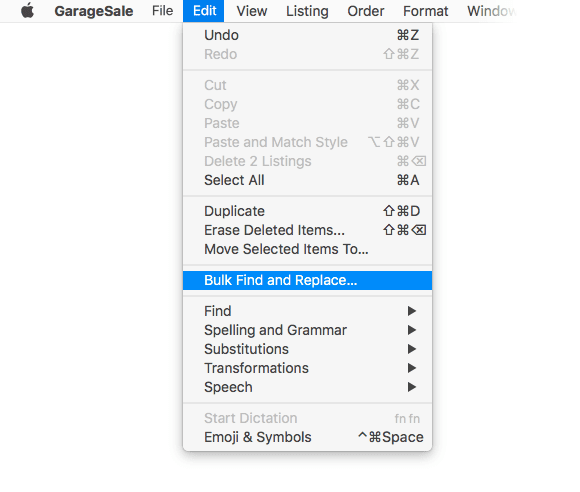
To open it, select “Bulk Find and Replace” from the “Edit” menu:
-
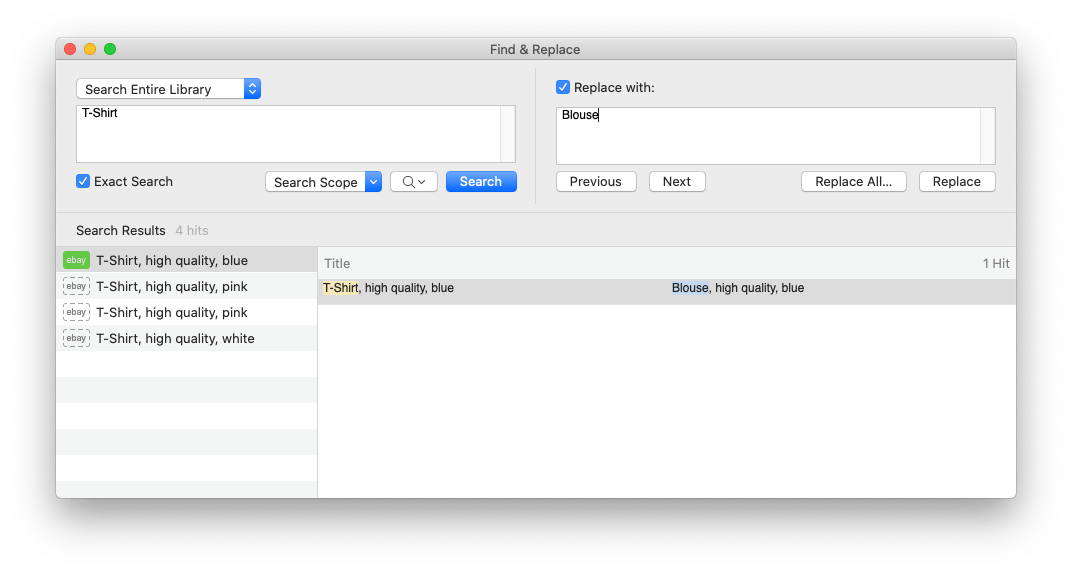
Enter your search string and optionally narrow down the search scope. If you want to search for an exact search string or HTML code, select the “Exact Search” option.
-
After clicking on the Search button, all search results will be listed in the area below: In the left sidebar the listings - and on the right the hits in the currently selected listing. All text hits are highlighted yellow.
- By selecting the “Replace With” checkbox you can enter the text that should replace the text to be searched. Also, a preview will appear in the search result view, showing you how your text will look after the replace (highlighted blue).
- By clicking on Replace All… you replace all hits in all search results.
- By clicking on Replace you replace the currently selected hit in the currently selected listing only.
After doing the replace, the text is highlighted green.
Copying and Pasting Listing Components
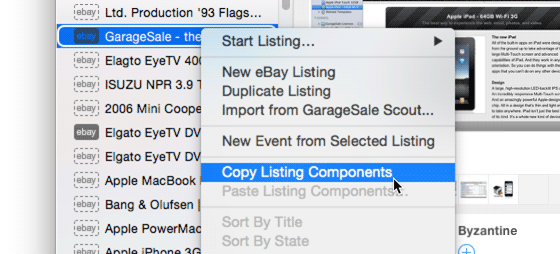
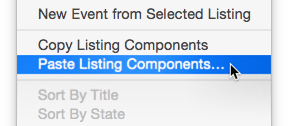
You can copy specific settings from one listing and paste them into other listings. Simply control-click on a listing in the left outline view and select “Copy Listing Components”.
1. From the context menu select “Copy Listing Components”:
2. Select another listing and choose “Paste Listing Components…”:
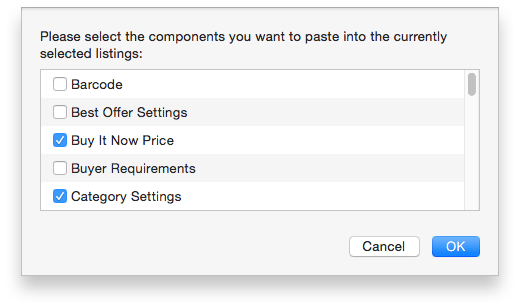
3. This will open a panel where you can cherry-pick the options you want to paste in the other listing:
Good to know
You can switch on/off all components at once by holding down the command (cmd) key when selecting one checkbox.
Moving Selected Items
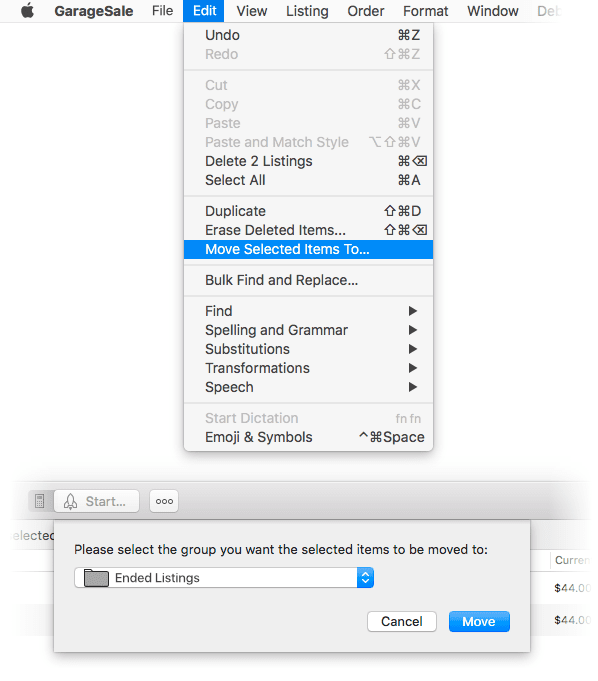
Instead of dragging & dropping items manually in the left outline view, you can simply use the “Move Selected Items” command from the “Edit” menu to quickly move one or more selected items to a specific folder. This can be very helpful if you have many items and groups to manage.
Bulk-Editing using JavaScript Actions
You can run custom JavaScript to bulk-edit listings and inventory item. You can create and run scripts from the Show Script Editor Window command in the Windows menu. Please see the chapter Custom JavaScript Actions for all details.
| << Error Handling | Editing Images >> |