Printing Pick Lists and Labels
You can select one or multiple listings and then print a pick list or item labels. Just select “Print Pick List” from the “Listing” menu.
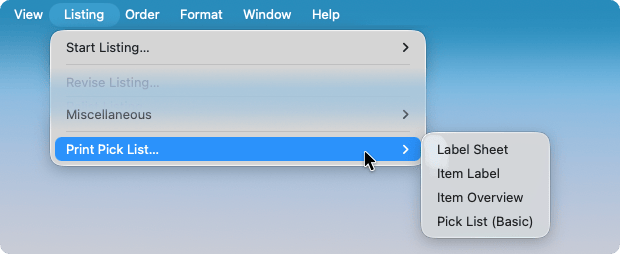
You can customize these print templates or create your own as well. Here are a few examples of situations where they can be helpful:
- Printing a pick list of ordered items
- Printing item labels e.g. for inventorying items in the stock (like adhesive labels with SKU, title and price)
- Printing a list of SKUs of selected listings to do a manual check in the inventory for availability/out of stock items
- Printing item summaries, flyers, or certificates
- Printing catalogues of selected listings to send to customers
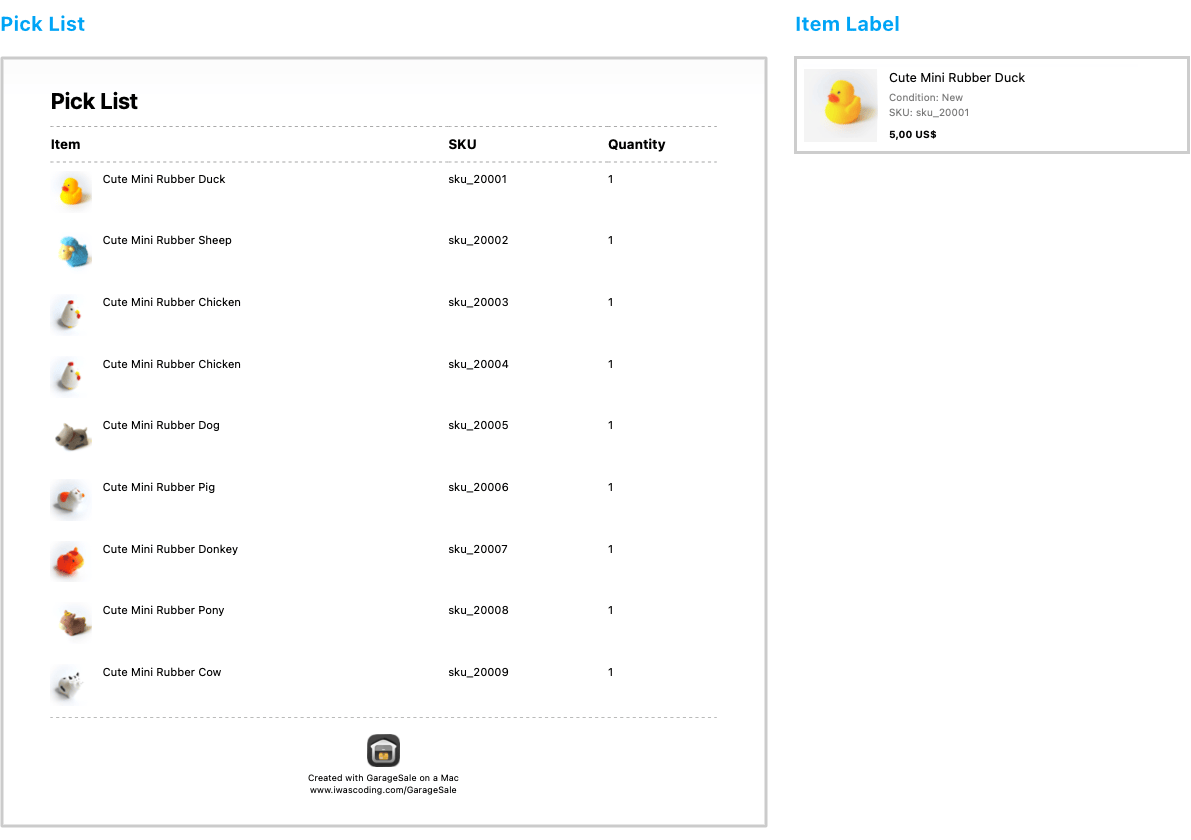
The following image shows how the default printable pick list and item label look like:
Creating your own print templates
Print templates are based on simple HTML code and easy to create and customize.
Please see the chapter Customize Pick Lists for example code, how to create, and where to store your own custom print templates.
Good to know
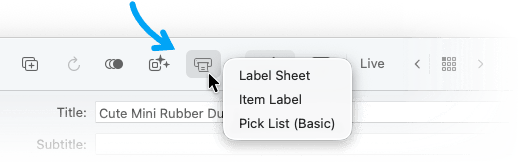
- You can add a printer button to your toolbar. Just control-click on the GarageSale toobar and select “Customize Toolbar…”.
- The “Pick List (basic)” template can show the item location if available as one of the following User Properties:
- Location
- Item_Location
- Warehouse_Location
- Inventory_Location
- CB_LOCATION
- BIN
| << Apply Current Changes from eBay | Product Safety >> |