Tracking Listings
Once a listing has been started, it can be monitored in GarageSale’s “Live” mode.

- When in “Live” mode, the actual eBay website of the listing is shown.
- The inspector will display additional information, such as bid counts, page visits and listing fees.
- The “Orders” tab gives you a quick overview of all related orders.
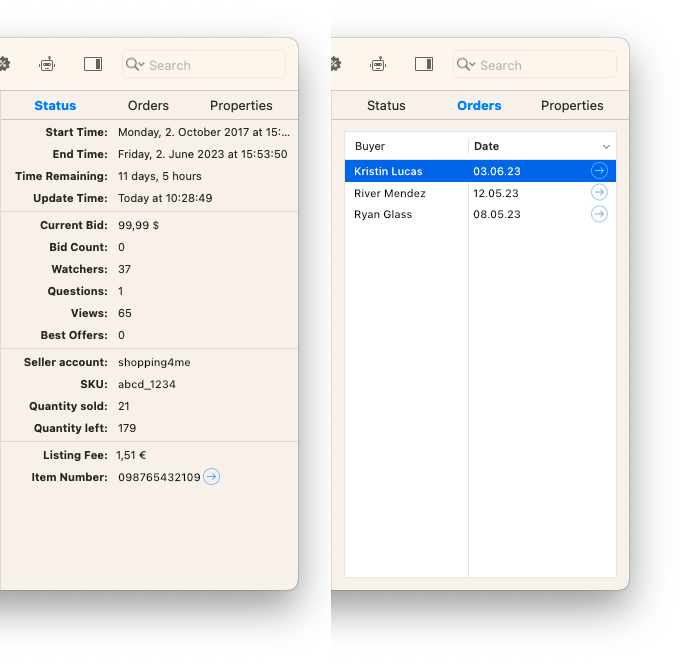
Once an item has been sold, track the transaction and order in Orders section.
Good to know
Smart Groups can help you to keep track of your active and ended listings.
For example you can create a smart group that filters all listings that have received bids, another smart group could filter all listings without bids or sales and another one filters all sold listings.
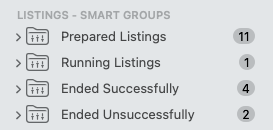
eBay Listing Lifecycle
The state of a listings is represented by its icon in the left outline view. This way you can easily distinguish between e.g. an active listing, an unsold listing or an ended listing that have been sold.
| Icon | State | Comment |
|---|---|---|
 |
Dashed Border: Prepared Listing | The initial state for new, not yet started listings |
 |
Blue border: Active Listing | The listig is active on eBay, but has not received any bids or sales yet |
 |
Green border: Active Listing | The listig is active on eBay and has received bids or sales |
 |
Solid grey: Ended Listing | The listing ended without bids or sales |
 |
Solid green: Ended Listing | The listing ended with bids or sales |
You can edit the icon colors in the GarageSale Settings.
| << Scheduling Listings | Revising Listings >> |