Listing Options
To create an eBay listing, various crucial information needs to be provided, such as the ebay category, a price and the item condition.
Many of the mandatory details can be entered directly in GarageSale’s Preview mode but other important listing settings such as variations, sales tax and buyer requirements, require the use of the Options or Advanced Inspector tab.
You can easily toggle the Inspector sidebar by clicking the inspector button in the toolbar.
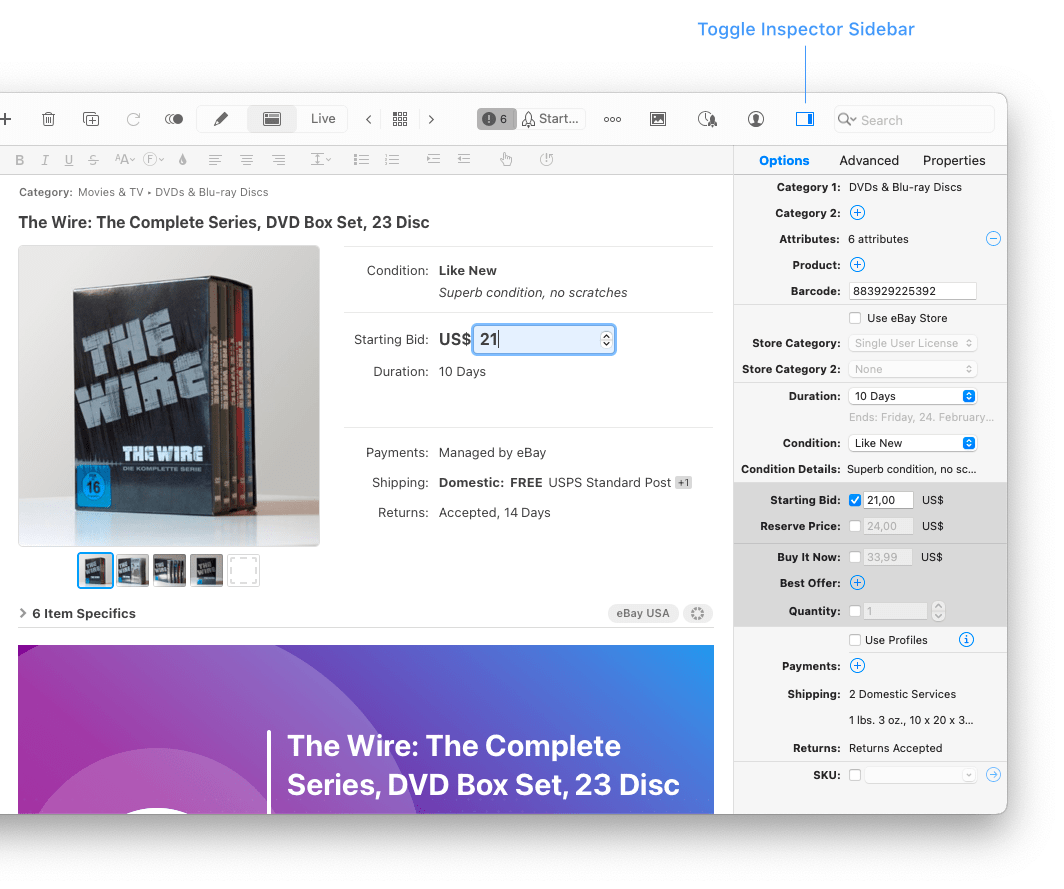
“Options” Inspector:
- Categories
- Attributes
- Product
- Barcode
- Product Safety
- eBay Store
- Duration
- Condition
- Condition Details
- Starting Bid
- Reserve Price
- Buy It Now
- Best Offer
- Quantity
- Use Profiles
- Payments
- Shipping
- Returns
- Parts Compatibility/Part Fitments
- SKU
Categories
eBay provides a vast number of categories to make your item(s) easier to find. It is mandatory to select a primary category. You should always make this your first order of business, as many other eBay options such as “Condition”, “Reserve Price” and “Best Offer” depend upon it.
You also have the option to select a secondary eBay category, but keep in mind that eBay will charge you extra and other fees might increase because of it.
Attributes
Most eBay categories feature so-called ‘item specifics’. These ‘item specifics’ are mostly optional and let you provide additional standardized information about your item(s) that can help potential buyers find them more easily (e.g. brand, color, material, etc.).
Depending on the selected category, eBay might submit attribute suggestions. You can edit these and even provide your very own custom specifics.
Product
When selling commercial products that are readily available on marketplaces like Amazon, we recommend connecting your item(s) with the eBay catalog. This will further increase your chances of potential buyers finding your product.
Use the search field in the ‘Product’ window to find and connect the desired product.
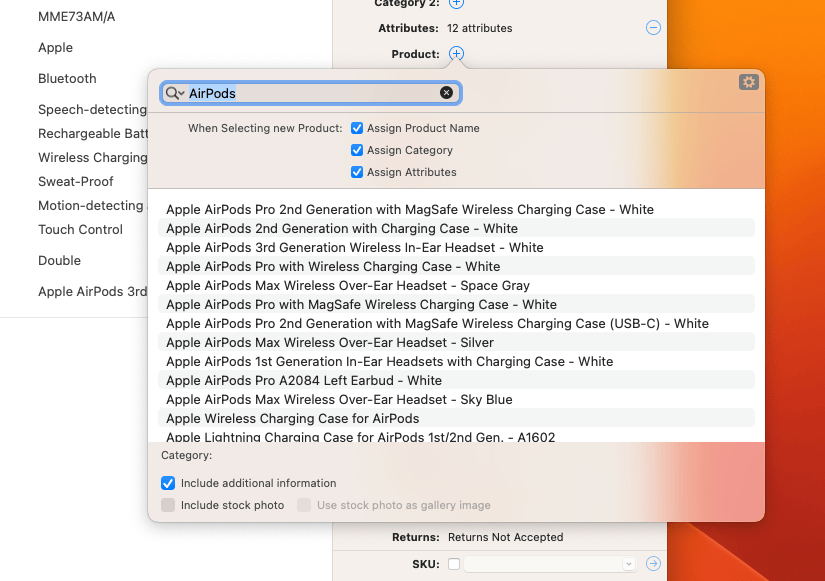
- By selecting “Assign Product Name”/”Assign Category” the title/category from the catalog product will be set as the listing title/category.
- Selecting “Assign Attributes” adds (if available) pre-defined attributes from eBay’s product catalog into your listing’s item specifics automatically. (Unfortunately, eBay does not provide many important attributes, such as a book titles and authors through their API.)
-
When selecting “Include additional information”:
- Product details from eBay’s product catalog will be added to the item specifics of the uploaded listing.
- GarageSale no longer ask users to enter “required” attributes, when these attributes are already part of the selected product and therefore would be displayed on the eBay page automatically.
- GarageSale won’t show an error when required attributes are missing
- GarageSale won’t automatically add required attributes into new listings when your insertion preference is set to “Insert required attributes”
- GarageSale lets you remove “required” attributes
Barcode
If your item features a UPC, EAN, or ISBN code, provide it here. Otherwise leave the field blank.
Barcodes provided can be picked up by many popular search engines and will further increase your selling chances.
Product Safety
Add product safety information to your listings such as product documents, manufacturer names, pictograms and safety statements. See the chapter Product Safety for all details.
eBay Store
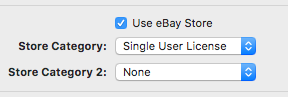
Use eBay Store: If you are an eBay store owner and wish to sell an item on your eBay store, please check this option.
Store Categories: You can select up to two store categories from the dropdown menu. Make sure that your store categories are already up-to-date by clicking on ‘Update Account Details…’ in the Accounts section of the GarageSale Settings window.
To add/edit your store categories themselves, please use your web brower to visit the “My eBay” website and make the desired additions/changes to your eBay store categories there. Remember to always update your account details in the GarageSale Settings when done.
Duration
The ‘Duration’ menu lets you control how long you wish for your eBay listing to run. The duration options differ depending on the eBay category and whether you are listing an eBay store item or not. GarageSale itself supports all duration options: From “1 Day” to “Good Till Canceled”.
Please note: Since April, 1st 2019 fixed price items (Buy-It-Now) can only be listed using the “Good Till Canceled” duration option. That means that the listing continues until the item is sold, or until you end the listing.
Condition
Select a condition that best complies with your item (Remember to select a category first!).
GarageSale supports eBay’s grading system for trading cards, letting you choose between Graded or Ungraded conditions in certain trading card categories. The Condition Type can be defined, as well (Professional Grader, Grade, Certification Number).
Condition Details
The ‘Condition Details’ enable you to provide much more detailed information about the condition of your item(s) that goes far beyond the default “Condition” options mentioned above.
Best of all: You can use your own words and are not limited to a set of predefined answers! Your custom condition details/description will be displayed on the eBay page of your listing.
Starting Bid
The ‘Starting Bid’ (applies only to classic auction-style listing) specifies the starting price of your eBay listing. Remember: It is always possible that you will have to sell your item for this price. So choose wisely (or use the “Reserve Price” option)!
Reserve Price
The optional ‘Reserve Price’ feature allows you to declare a hidden minimum price that has to be reached in order for your item to sell. If your listing does not receive any bids that meet or exceed the reserve price, you are not required to sell the item. While the exact amount of the reserve price is hidden from public view, the very existence of a reserve price is evident to all potential buyers. The ‘Reserve Price’ feature requires a Starting bid.
Please note: The reserve price is not available on all eBay sites. Also, please make sure to select an eBay category that supports the reserve price feature. Check the category browser to find out!
Please note that eBay currently charges a reserve price fee.
Buy It Now
If you wish to sell your item at a fixed price, please provide the Buy It Now price here. You can add a Buy It Now price to an auction-style listing or choose to sell your item exclusively at a fixed price (fixed price listing). The main advantage of fixed price listings is that buyers don’t have to wait for the auction to end but can purchase the item immediately instead.
Please note: Since April, 1st 2019 fixed price items (Buy-It-Now) can only be listed using the “Good Till Canceled” duration option. That means that the listing continues until the item is sold, or until you end the listing.
Best Offer
This option is only available on selected eBay sites and for certain eBay categories. With this option enabled potential buyers can ask you whether you are willing to sell your item at a lower price than the given fixed price.
To use this feature click the + icon and check off ‘Use Best Offer’. Here you can also provide an auto accept price and/or an auto decline price, if so desired.
Quantity
If you wish to sell multiple copies of the same item, please enter the quantity here.
Using eBay’s “Out of Stock” feature: You can set the quantity of “Good ‘Til cancelled” listings to zero to mark the item “out of stock”. (You first need to enable the “Out of Stock” feature in your selling preferences on eBay’s website.)
Use Profiles
Profiles (aka “policy templates”) for payments, shipping, and returns are part of what eBay calls eBay’s Business Policies.
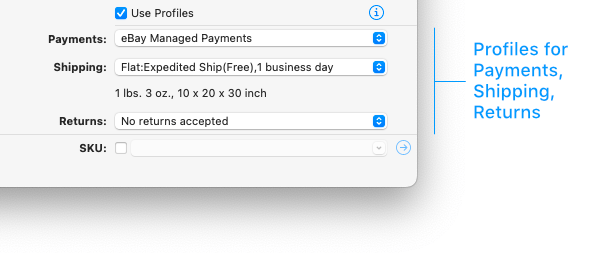
If you want to use profiles, make sure the Use Profiles checkbox is selected. Then select the desired profiles for Payments, Shipping, and Returns.
Payments
By default eBay’s own “Managed Payments” will be used. Depending on the selected eBay site there might be additional options available, e.g. “Cash on pickup” if you offer “Local Pickup” as a shipping option.
Payment Profile: If the Use Profiles checkbox is selected, simply select the desired payment profile. Please find more info about profiles in the chapter eBay’s Business Policies.
Shipping
The Shipping section lets you set up shipping services for Domestic Shipping (mandatory), International Shipping (optional), use eBay’s “Global Shipping Program” and define locations you wish to exclude.
GarageSale supports up to 4 domestic shipping services and up to 5 international shipping services.
Advanced Options: If you created a shipping rate table and discount profiles on eBay, you can select them here.
Tip: The shipping service menus offer a lot of services that you’ll probably never use. To get rid of these services and to make the menus smaller, just select “Show/Hide” from the bottom of the menu. This opens a panel where you can disable services you don’t use at all:
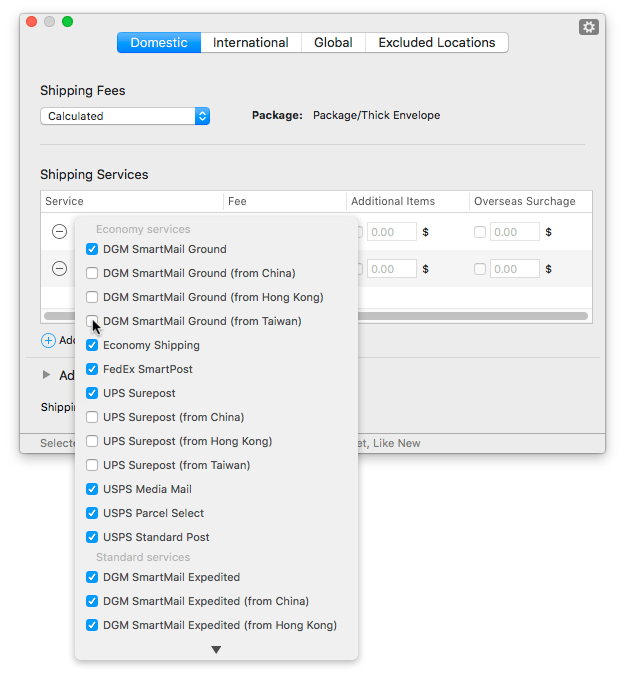
Shipping Profile: If the Use Profiles checkbox is selected, simply select the desired shipping profile. Please find more info about profiles in the chapter eBay’s Business Policies.
Returns
If you accept returns for your items, you can specify them here.
Return Profile: If the Use Profiles checkbox is selected, simply select the desired return profile. Please find more info about profiles in the chapter eBay’s Business Policies.
Parts Compatibility/Part Fitments
When listing vehicle parts, you can specify a list of compatible vehicles. This feature is supported on eBay USA Motors, eBay Germany, eBay Australia, eBay UK and eBay Italy. Make sure the category you selected supports parts compatibility.
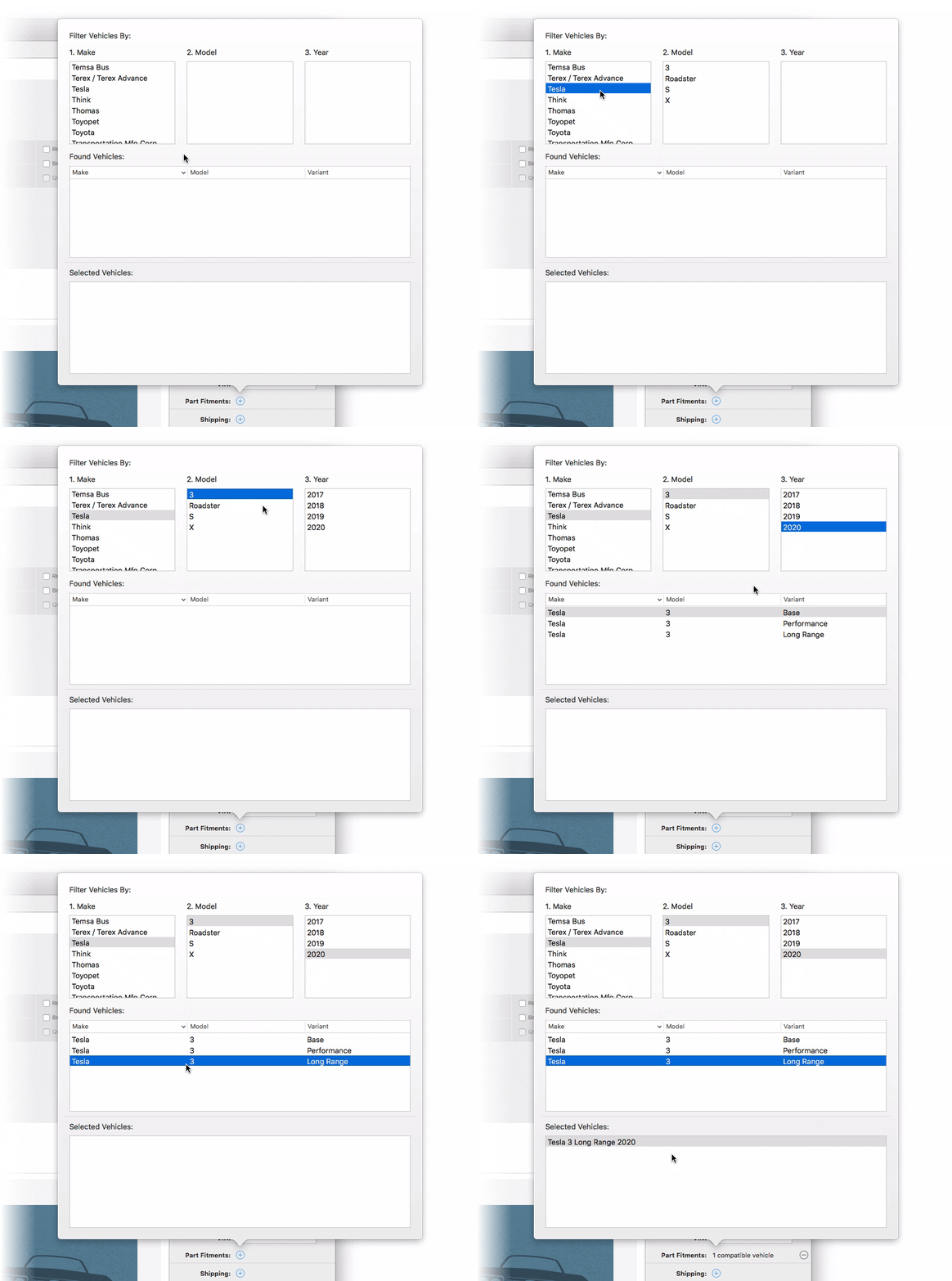
Multiple found vehicles can be selected by holding the shift key, and added by double-clicking.
SKU
SKU stands for “Stock Keeping Unit.” This unique numeric identifier is mostly used to refer to specific inventory or catalog products. This is particularly useful when selling multiple instances of the same item, as it allows you to keep track of each individual item. This feature is mostly used by Power Sellers.
Once the inventory item is set up in the Inventory Section, you can easily connect it to a listing via the SKU field.
| << Creating New Listings | Advanced Listing Options >> |