Starting Listings
Once you are ready to start your listing on eBay, choose the “Start Listing” command from the toolbar or from the “Listing” menu. If you have authorized more than a single eBay account in GarageSale, an additional menu will appear, asking you to select the desired account.
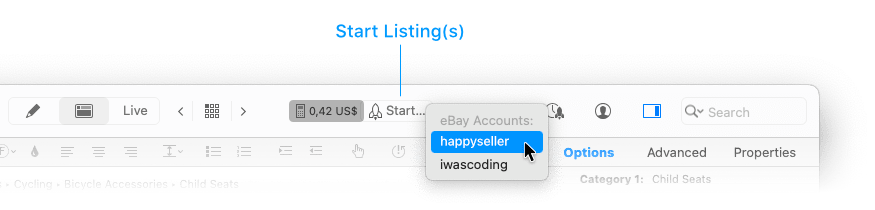
You can select multiple listings and start them simultaneously by holding down the command or shift key while clicking on additional listings.
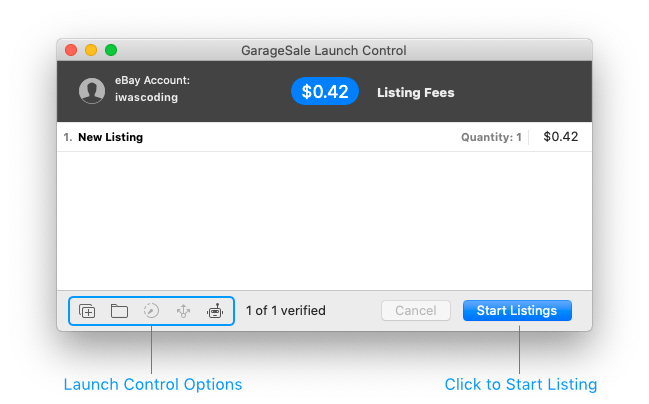
Once GarageSale’s Launch Control window has appeared, your listings will be verified using the selected eBay account. If GarageSale or eBay cannot find any errors, the estimated listing fees (as calculated by eBay) will show at the top of the “Launch Control” window.
Click the “Start Listings” button to upload your listings to eBay.
After a new listing has been started, its icon changes from “prepared” state (dashed border) to “active” state (solid border, colored):

Good to know
Please keep in mind that a listing can be only started once. If you wish to start the same listing several times in rapid succession, duplicate it or use the “Duplicate Listings after Launch” option from the Launch Control Options (see below).
Launch Control Options
In the Launch Options popover window you can fine-tune how GarageSale handles your listings during the launch and once they have been started:
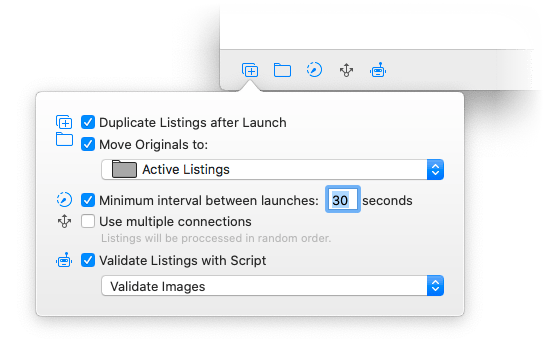
This window offers several options:
-
Duplicate Listings after Launch: If enabled, this feature will create a duplicate listing of the one that you just started, place it right below the original listing and highlight it. This way you can easily start identical listings, without accidentally modifying a listing that has already been started.
-
Move Originals to: Here you can tell GarageSale to automatically move your started listings to a specific folder. This can be helpful, if you wish to keep your started listings out of the draft folder.
-
Minimum interval between launches: If you launch multiple listings at once you can set an interval between each listing start, e.g. 60 seconds.
-
Use multiple connections: If you launch multiple listings at once you can speed up the launch process by using multiple connections. However, by doing this the listing might be processed in random order.
-
Validate Listings with Script: When launching listings you can run a custom JavaScript to process the listings. You can create and run scripts from the Show Script Editor Window command in the Windows menu. Learn more in the chapter Custom JavaScript Actions.
If any of these options are enabled, their corresponding status icons will appear highlighted (colored) at the bottom of the Launch Control window.
Dealing with Errors and Warnings
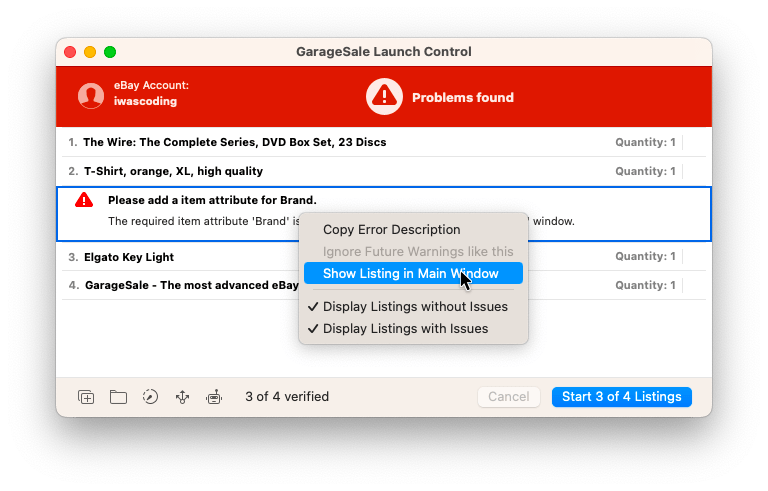
When starting or verifying a listing, errors or warnings may be returned from eBay or from GarageSale. While a warning message (yellow error sign) does not prevent you from uploading the listing, an error message (red error sign) does.
Please see the chapter Error Handling to learn more about dealing with error messages.
| << Advanced Listing Options | Scheduling Listings >> |